Tool Calling and Dispatch
Tool calling is the central mechanism of WebMCP Auto-UI. The LLM agent generates tool_use blocks, and the dispatcher routes them to the right server — remote MCP or local WebMCP. This page traces the complete journey of a tool call, from the LLM to the result.
Flow Overview
Section titled “Flow Overview”sequenceDiagram participant LLM as LLM Agent participant DISP as Dispatcher participant ALIAS as Alias Map participant MCP as MCP Server (remote) participant WMCP as WebMCP Server (local) participant CANVAS as Canvas
LLM->>DISP: tool_use: weather_mcp_get_forecast DISP->>ALIAS: Resolve alias ALIAS-->>DISP: weather_mcp_get_weather_data DISP->>DISP: Parse prefix:<br/>server=weather, proto=mcp, tool=get_weather_data DISP->>MCP: callTool("get_weather_data", {location: "Paris"}) MCP-->>DISP: {temp: 18, wind: 12} DISP-->>LLM: tool_result
LLM->>DISP: tool_use: autoui_webmcp_widget_display DISP->>WMCP: executeTool("widget_display", {name: "stat", params: ...}) WMCP-->>DISP: {widget: "stat", id: "w_abc"} DISP->>CANVAS: onWidget("stat", data) DISP-->>LLM: tool_resultAnatomy of a Tool Call
Section titled “Anatomy of a Tool Call”1. Agent Generates a tool_use Block
Section titled “1. Agent Generates a tool_use Block”When the LLM decides to use a tool, it produces a structured block:
{ type: 'tool_use', id: 'toolu_1234', // Unique call identifier name: 'weather_mcp_get_forecast', // Canonical name with prefix input: { location: 'Paris', days: 3 } // Tool parameters}The name follows the {serverName}_{protocol}_{toolName} convention. This format tells the dispatcher immediately:
- Which server to contact (
weather) - Which protocol to use (
mcp= remote,webmcp= local) - Which tool to call (
get_forecast)
2. Dispatcher Routes the Call
Section titled “2. Dispatcher Routes the Call”The dispatcher is the routing core. For each tool_use block, it:
- Resolves aliases (canonical names to actual server names)
- Parses the prefix to identify server, protocol, and tool
- Routes to MCP or WebMCP
for (const block of toolBlocks) {  // Step 1: Resolve alias  const resolvedName = aliasMap.get(block.name) ?? block.name;
  // Step 2: Parse prefix  const match = resolvedName.match(/^(.+?)_(mcp|webmcp)_(.+)$/);  if (!match) {    result = `Error: unknown tool format`;  } else {    const [, serverName, protocol, realToolName] = match;
// Step 3: Routing if (protocol === 'mcp') { // → Network call via MCP client } else if (protocol === 'webmcp') { // → Local execution via WebMCP server } }}3. Interceptor (Pseudo-Tools)
Section titled “3. Interceptor (Pseudo-Tools)”Before normal dispatch, two pseudo-tools are intercepted locally. They do not trigger server activation:
if (toolMatch[3] === 'list_tools' || toolMatch[3] === 'search_tools') {  const layer = layers.find(l =>    sanitizeServerName(l.serverName) === serverName &&    l.protocol === protocol  );
  if (pseudoTool === 'list_tools') {    // Return the complete tool list for the server    result = JSON.stringify(layer.tools);  } else {    // Filter by keyword in name or description    const query = String(block.input.query ?? '').toLowerCase();    const matches = layer.tools.filter(t =>      t.name.toLowerCase().includes(query) ||      t.description.toLowerCase().includes(query)    );    result = JSON.stringify(matches);  }}
Why intercept? So the agent can explore available tools without triggering a network connection. The agent can call list_tools() as often as it wants with zero network cost.
4. Lazy Server Activation
Section titled “4. Lazy Server Activation”On the first real call to a server’s tool:
const serverKey = `${serverName}_${protocol}`;
if (!activatedServers.has(serverKey)) {  activatedServers.add(serverKey);  const layer = layers.find(l =>    sanitizeServerName(l.serverName) === serverName &&    l.protocol === protocol  );  if (layer) {    // Add ALL server tools to active tools    activeTools = activateServerTools(activeTools, layer);  }}
After activation, the LLM receives the full tool list for the server on its next call. Activation is a one-shot operation: it happens once per session.
MCP Dispatch
Section titled “MCP Dispatch”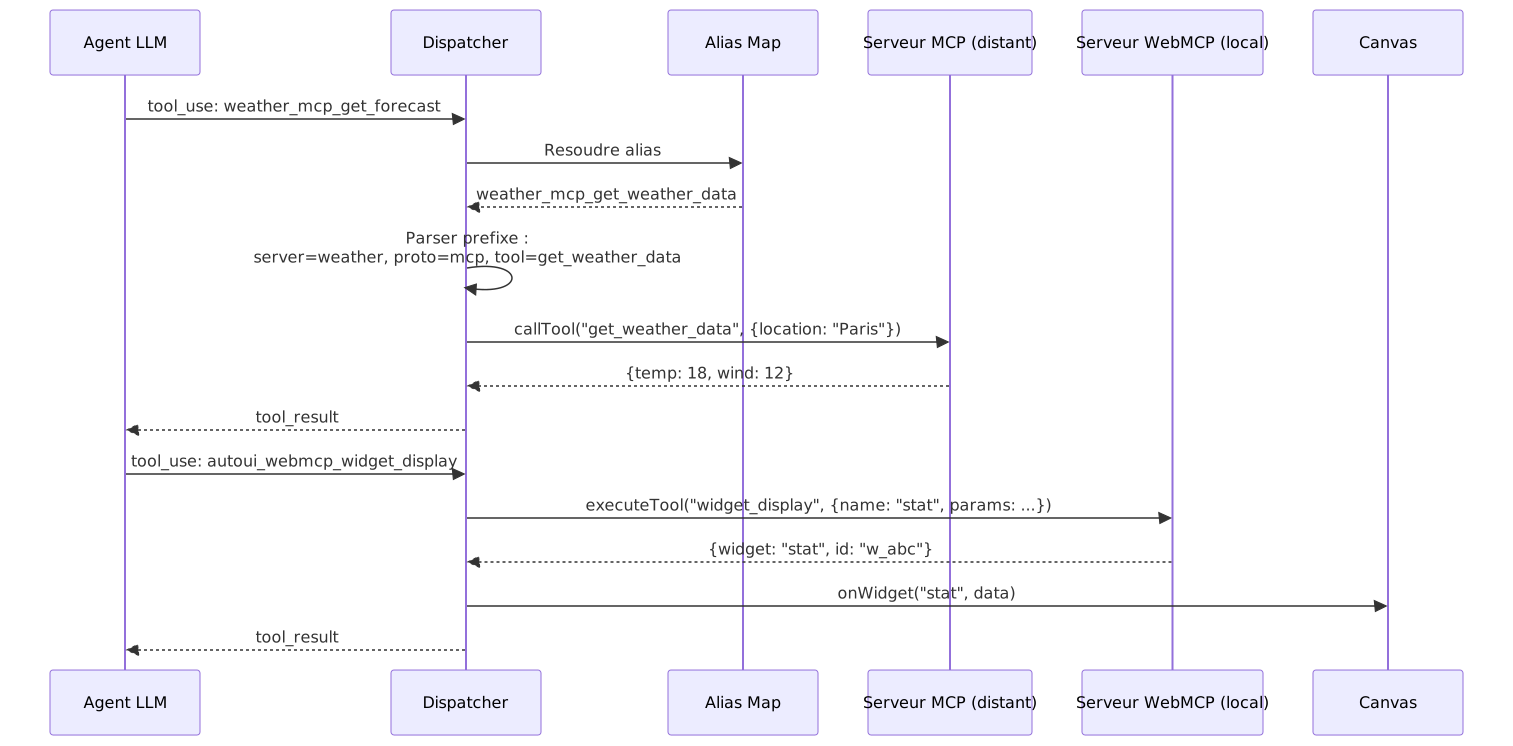
MCP dispatch goes through an SSE (Server-Sent Events) client connected to the remote server:
if (protocol === 'mcp') {  if (!client) {    result = `Error: no MCP client available for tool ${name}`;  } else {    // Call the tool on the remote server    const mcpResult = await client.callTool(realToolName, block.input);
    // Extract text content from the MCP response    const textContent = mcpResult.content?.find(      (c) => c.type === 'text'    ) as { text?: string } | undefined;    const rawResult = textContent?.text ?? JSON.stringify(mcpResult);
    // Truncate if result exceeds limit (default: 10,000 chars)    result = truncateResults      ? truncateResult(rawResult, maxResultLength)      : rawResult;  }}
Truncation prevents a large result (a 10,000-row table, for example) from filling the context window. The full result is stored in the resultBuffer and accessible via recall().
WebMCP Dispatch
Section titled “WebMCP Dispatch”
WebMCP dispatch executes the tool locally in the browser:
if (protocol === 'webmcp') { // Special case: recall (re-read a compressed result) if (realToolName === 'recall' && resultBuffer.size > 0) { const recallId = (block.input as { id: string }).id; result = resultBuffer.get(recallId) ?? `No result found for id '${recallId}'.`; } else { // Normal dispatch to WebMCP server const webmcpServer = webmcpServers.get(serverName); if (!webmcpServer) { result = `Error: no WebMCP server "${serverName}" found.`; } else { const toolResult = await webmcpServer.executeTool( realToolName, block.input ); result = typeof toolResult === 'string' ? toolResult : JSON.stringify(toolResult); } }}WebMCP dispatch handles three special cases beyond standard execution:
Special Case: widget_display
Section titled “Special Case: widget_display”When the called tool is widget_display, the dispatcher detects the result and triggers the rendering callback:
if (realToolName === 'widget_display') { const wr = toolResult as Record<string, unknown>; if (wr.widget && wr.data && !wr.error) { const widgetResult = callbacks.onWidget?.( wr.widget as string, wr.data as Record<string, unknown> ); if (widgetResult?.id) { result = JSON.stringify({ ...wr, id: widgetResult.id }); } }}The onWidget callback is responsible for adding the widget to the canvas. The returned id lets the agent manipulate the widget in subsequent iterations (move, resize, update).
Special Case: canvas
Section titled “Special Case: canvas”The canvas tool lets the agent manipulate existing widgets:
if (realToolName === 'canvas') {  const action = block.input.action as string;  const id = block.input.id as string;  const actionParams = block.input.params as Record<string, unknown>;
switch (action) { case 'clear': callbacks.onClear?.(); break; case 'update': callbacks.onUpdate?.(id, actionParams ?? {}); break; case 'move': callbacks.onMove?.(id, x, y); break; case 'resize': callbacks.onResize?.(id, width, height); break; case 'style': callbacks.onStyle?.(id, styles); break; }}| Action | Description | Example Use |
|---|---|---|
clear | Empty the entire canvas | ”Start from scratch” |
update | Modify a widget’s data | Change a stat’s value |
move | Reposition a widget (CSS transform) | Rearrange layout |
resize | Resize a widget | Enlarge a chart |
style | Apply CSS styles | Change background color |
Special Case: recall
Section titled “Special Case: recall”recall is a pseudo-tool that re-reads a compressed result. It is intercepted before normal dispatch:
if (realToolName === 'recall' && resultBuffer.size > 0) { const recallId = (block.input as { id: string }).id; result = resultBuffer.get(recallId) ?? `No result found...`;}Widget Display in Detail
Section titled “Widget Display in Detail”widget_display() is the primary tool for UI rendering. Here is the complete journey of a call:

End-to-End Example
Section titled “End-to-End Example”// 1. Agent calls widget_display{ type: 'tool_use', id: 'toolu_5678', name: 'autoui_webmcp_widget_display', input: { name: 'stat-card', params: { label: 'Conversion', value: '3.2%', trend: 'up', variant: 'success' } }}The dispatcher executes these steps in sequence:
- Resolution: find the
stat-cardwidget definition in the registry. - Validation: check that
paramsmatches the JSON Schema (labelandvaluerequired,trendmust be one of[up, down, stable]). - Sanitization: verify image URLs (if present) against an allowlist of domains.
- ID generation: create a unique identifier
w_1a2b3c. - Callback: call
onWidget('stat-card', {...params})to add the widget to the canvas. - Canvas store: the store adds
{ id: 'w_1a2b3c', type: 'stat-card', data: {...} }to the block list. - Svelte rendering:
WidgetRendererdetects the new block and mounts theStatCardcomponent with props. - Display: the widget appears on the canvas.
Error Handling
Section titled “Error Handling”Schema Validation Error
Section titled “Schema Validation Error”// Agent omits a required field{ name: 'autoui_webmcp_widget_display', input: { name: 'stat', params: { label: 'Sales' } // Missing 'value' (required) }}
// Dispatcher returns error + schema{ type: 'tool_result', content: JSON.stringify({ error: 'Validation failed', details: [{ path: '/value', message: 'required' }], expected_schema: { type: 'object', required: ['label', 'value'], ... } })}The agent receives the expected schema and can retry with the correct fields. This error-correction pattern is natural for LLMs.
Tool Not Found
Section titled “Tool Not Found”// MCP server not connectedif (!client) { result = `Error: no MCP client available for tool ${name}`;}
// WebMCP server not registeredif (!webmcpServer) { result = `Error: no WebMCP server "${serverName}" found.`;}Execution Failure
Section titled “Execution Failure”try { const toolResult = await webmcpServer.executeTool(realToolName, block.input); result = ...;} catch (e) { call.error = e instanceof Error ? e.message : String(e); toolResults.push({ type: 'tool_result', tool_use_id: block.id, content: `Error: ${call.error}` });}Execution errors are caught and returned to the agent as normal tool_result messages. The agent can decide to retry, use a different tool, or report the failure to the user.
Metrics and Monitoring
Section titled “Metrics and Monitoring”Every tool call is tracked with metrics:
const call: ToolCall = {  id: block.id,          // Unique call ID  name: block.name,      // Canonical tool name  args: block.input,     // Parameters  result: result,        // Result (or error)  error: undefined,      // Error message if failed  elapsed: Math.round(performance.now() - t1),  // Duration in ms  guided: wasDiscovering, // true if preceded by a discovery tool};
metrics.toolCalls++;callbacks.onToolCall?.(call);
The onToolCall callback enables:
- Logging every call for debugging
- Measuring MCP server latency
- Counting tools called per iteration
- Detecting loops (same tool called repeatedly with same parameters)
The <AgentConsole> component from @webmcp-auto-ui/ui displays these metrics in real time in the interface.
Result Compression
Section titled “Result Compression”After approximately 2 iterations, old tool_result messages are compressed to save context:
// Before compression{  type: 'tool_result',  tool_use_id: 'toolu_1234',  content: '{"data": [item1, item2, ... item1000], "total": 1000}'  // 5000 characters}
// After compression (mutated in place in the messages array){  type: 'tool_result',  tool_use_id: 'toolu_1234',  content: '{"data": [item1, item2... [recall(\'toolu_1234\') for full result, 5000 chars]'  // 200 characters}
// Full result stored in bufferresultBuffer.set('toolu_1234', '{"data": [item1, item2, ... item1000]}');
The agent can re-read the full result at any time by calling recall('toolu_1234'). This mechanism is transparent: the agent decides whether it needs the full result or if the preview is enough.
Flow Summary
Section titled “Flow Summary”flowchart TD A[LLM generates tool_use] --> B{Valid format?} B -->|No| ERR1[Error: unknown format] B -->|Yes| C[Resolve alias] C --> D{Pseudo-tool?} D -->|Yes| E[Local response<br/>list/search_tools] D -->|No| F{First call<br/>to this server?} F -->|Yes| G[Activate all<br/>server tools] F -->|No| H{Protocol?} G --> H H -->|MCP| I[Network call<br/>via SSE] H -->|WebMCP| J{Special tool?} J -->|recall| K[Read from<br/>resultBuffer] J -->|widget_display| L[Validate + mount<br/>widget on canvas] J -->|canvas| M[Manipulate<br/>existing widgets] J -->|Standard| N[executeTool] I --> O[Truncate if needed] K --> O L --> O M --> O N --> O E --> O O --> P[Compress old<br/>results] P --> Q[Return tool_result<br/>to agent]Why the {server}_{proto}_{tool} format instead of just the tool name?
Section titled “Why the {server}_{proto}_{tool} format instead of just the tool name?”Because the same tool name can exist on multiple servers. For example, list_items could be defined on both a database and a filesystem server. The prefix disambiguates.
How many tools can an agent handle?
Section titled “How many tools can an agent handle?”In theory, as many as the context window allows. In practice, beyond 50 active tools, LLM choice quality degrades. The lazy loading mechanism limits tools to only the servers actually used.
What happens if an MCP server does not respond?
Section titled “What happens if an MCP server does not respond?”The call waits until a timeout (configurable via AbortSignal). The agent receives an error and can decide what to do next (retry, use a different tool, inform the user).
How do I add a custom pseudo-tool?
Section titled “How do I add a custom pseudo-tool?”Pseudo-tools are managed in the dispatcher. To add one, you need to modify the interception logic in loop.ts. This is intentionally limited: pseudo-tools should be rare and well-defined.